 Post-production
and printing
Post-production
and printing
of a scanned black and white negative
Alain Oguse - Revised and Expanded Edition - July 2026
Table of Contents
Foreword
While writing the article "Digitizing a Black and White Negative While Preserving Its Subtlest Textures https://bw-film-scanning.oguse.fr/en/index.html ", I remained focused on the core of my subject. It was only after publishing it that a reader pointed out that, once the RAW file is saved, it is not straightforward to achieve the desired print. I must admit that the scattered information I provided on this topic was quite fragmented.
To be honest, it wasn’t trivial for me either. I often say it: no, none of this is simple, and it is only worthwhile for photographs to which we attribute significant artistic or archival value.
After much trial and error, I finally achieved what I wanted. The
subject of this article is therefore the description of the method I
use to print an A3+ from a RAW file of at least 36 MP, created by
digitizing a 35 mm negative using point light. There are, of course,
many other possible methods
I
am pleased to cite the work of Arno Godeke, whose high-quality
results I have greatly admired. His approach is highly original and
unexpected, fundamentally different from my own:
https://forums.negativelabpro.com/t/lets-see-your-dslr-film-scanning-setup/27/354?
His blog, which I recommend: https://www.arnogodeke.com/Blog
I will provide the arguments that guided my
choices. I hope this will help some save a little time.
Choosing Paper, Ink, and Printer
I won’t pretend that all my choices were purely technical and rational. A significant part stems from my discovery of Paul Roark’s website ttps://www.paulroark.com/BW-Info/ , which I recommend to anyone interested in high-quality black and white printing. Here are the points in his proposal that meet my expectations:
- DIY ink formulas. This is something I learned to do in the 1960s for silver printing: making my own developers and fixers. Autonomy, skill acquisition, independence, and, although not the main point, cost reduction.
- An open-source solution. This ensures knowing exactly what you are using, why, and for what purpose. It also means joining a community always ready to help. To be honest, it requires making the effort to contribute yourself..
- “Carbon” inks. The small world of “creative photography” in the 1970s convinced me of the need to ensure maximum stability for prints over time. In silver printing, I had to guarantee a lifespan of 100 years on several occasions For example, for the Cabinet des Estampes of the Bibliothèque Nationale de Paris.The small world of “creative photography” in the 1970s convinced me of the need to ensure maximum stability for prints over time. In silver printing, I had to guarantee a lifespan of 100 years on several occasions
Ink Selection
100% carbon inks have a drawback: they produce a warm tone, more or less pronounced depending on the paper and the fineness of the carbon powder used. Paul Roark’s “Glossy Carbon Variable Tone” formula provides a clever solution. It adds a light blue pigmentary “toner,” which is not carbon-based but serves to “cool” the rendering as needed. This toner will be less stable than the other inks, but if chosen correctly Canon Lucia blue and cyan pigments. Independent tests indicate that these color pigments are the most light-resistant among those available., it will easily last a hundred years. Over time, the overall tonality will gradually warm, with the essential elements of the image remaining unchanged. A subtle “vintage photo” effect?
It's a good idea to try to ensure your independence from your printer manufacturer. However, you shouldn't put yourself in an even more vulnerable position. This is the most uncertain aspect of this formula. Everyone should be fully aware of this before diving in. That said, over the past 10 years, I have seen many printers reach the end of their life, while the inks and cartridges I need have always remained available.
-
Note the most recent information provided by Paul Roark on this subject (particularly important for the USA): “links to MIS Associates pages throughout my PDFs are mostly obsolete. MIS is simply no longer a supplier of the materials I prefer. Rather, I buy from STS Inks. My contact there is Joseph Costello – Joe@stsinks.com. The products I use most are the ink formerly known as "Eboni" MK (matte black), which is "wj1082" at STS; Photo Black (for glossy paper), which is wj1122 at STS; and "gloss optimizer" to dilute PK is wj824 at STS”.
- For me, in Europe, I have always ordered from the English supplier
Octoink, without any difficulty… except that Brexit has
significantly increased delays and prices.
-
Inks: https://www.octoink.co.uk/categories/Bulk-Ink/Epson-Compatible/Monochrome-%252d-Paul-Roarke-Inks/
-
Refillable cartridges: https://www.octoink.co.uk/products/T0791%252d6-Refillable-Cartridge-Set-%5BEmpty%5D.html
-
Simple and ingenious filling accessories: https://www.octoink.co.uk/products/SquEasyFill-Converter-Kit.html
-
You need few tools for mixing, which can be done either by volume or by weight. I use a small precision scale, easily found for €10 or €20. Some use a large syringe or pipette.
How to fill these cartridges? Here is an tutorial and an excellent
video
https://www.inksupply.com/instructions/instructions_epson_ar_1400_r260_r1900.pdf
https://www.youtube.com/watch?v=D7JUXYFIwf0
.
Printer Selection
Paul Roark’s formulas List of all ink kits for printers. This list includes relatively recent ink kits. It also includes older ink kits that may no longer be recommended today: https://www.paulroark.com/BW-Info/Inkset-list.html are designed for Epson inkjet printers. The most recent, “Glossy Carbon Variable Tone,” is the one he presents as his best recommendation. It is provided as a PDF with all the necessary information, and more. It comes with usable profiles https://paulroark.com/BW-Info/GlossyCarbon-Profiles.zip for the Epson printer driver or, better yet, with the shareware software QuadToneRIP https://www.quadtonerip.com/html/QTRoverview.html (50 USD).
The “Glossy Carbon Variable Tone” formula is available for the following printers:
- For the Stylus Photo 1500W http://www.paulroark.com/BW-Info/Glossy-Carbon-Variable-Tone.pdf (named 1430 Artisan in the USA). In 2016, Paul Roark also stated: “The basic ink set should work with virtually all Epson printers.” Since then, many things have changed; it is better to stick to 6-cartridge printers from the “Claria” family.
- For the Epson Stylus Pro 7800 and 9800 http://www.paulroark.com/BW-Info/7800-9800-Glossy-Carbon-Variable-Tone.pdf . Paul Roark added: “It should work on all Epson printers with 8 ink cartridges.” In a forum, he explains that this profile works on his P9000. For newer models, I recommend checking the QuadToneRIP forum https://groups.io/g/QuadToneRIP .
It seemed prudent to follow his advice that “The best printer to start with is perhaps the Epson 1500W (1430 in the USA).” It was a wise choice since my initial goal was to obtain prints for an exhibition in A3+ format, which is precisely the maximum format of this printer.
Although old, it is still possible (Summer 2025) to find it second-hand for between €20 and €100. Don’t be fooled by offers of €400, €500, or €1000. There is a risk of ending up with a broken or locked machine. All the more reason to stick to reasonable prices. If this happens, there are solutions that, if you are a bit handy, may allow you to turn the situation to your advantage:
- Clogged nozzles: This is the chronic issue of any inkjet
printer, which depends heavily on the inks used. Paul Roark’s
“Glossy Carbon Variable Tone” formula is less sensitive to this
Judging by the frequency of videos, it seems that inks intended
for fabric printing (T-shirts) are the most affected. .
In this situation, tutorials
- The absolute reference: https://www.youtube.com/watch?v=FoREA1GMpD4
- Also : https://www.youtube.com/watch?v=_1hxljJhi9M
- And : https://www.youtube.com/watch?v=TSao7pWBpnc , I have used several times are genuinely effective. - Print heads: If nozzle cleaning attempts are insufficient, you may have to resort to disassembling the print head to clean it. This has never happened to me, but this tutorial https://www.youtube.com/watch?v=YEeYEnZar_Y seems plausible. You might even have to replace it https://www.youtube.com/watch?v=mMST38KkRtY .
- Waste ink pads: The printer is locked with the message “waste ink pad is at the end of its life”! These are the pads that receive excess ink during head cleaning or borderless printing. Of course, something must be done with this wasted ink! But Epson does not warn its users enough, leaving the less “geeky” among them with a useless printer. I find this unacceptable from Epson. Fortunately, there is a solution (not from them)..
- First, as soon as you have a B1500W printer, install a waste
ink reservoir
. This will permanently spare the famous pads. It’s inexpensive
(€22) and an easy DIY
https://www.youtube.com/watch?v=ZZL3gbSH77U&t=180s
(After the somewhat tedious introduction, this video is well done) . Epson should offer it as an option when they claim their product can print borderless, which is a good source of wasted ink… - If the printer is already locked, the same reservoir is provided with an unlock key https://www.octoink.co.uk/products/Solo-Max-Waste-Kit-%252b-Key-Bundle.html (€28), whose use is not intuitive but well explained here https://www.youtube.com/watch?v=z0NyHPKvCuM .
- “Incompatible Cartridge” message: The printer is locked! Another very unpleasant trick from Epson. What’s happening? To use the inks we carefully dilute, we must use cartridges not manufactured by Epson, which does everything to prevent this. Thus, Epson released a newer version of its original firmware. If someone updated this firmware, or if your 1500W/1430 is among the newest: you will only be able to use original (OEM) cartridges. If you are on Windows, you are lucky enough to still be able to save the situation thanks to this little-known and very clever “hack“ https://www.youtube.com/watch?v=qrXaxrveiJU . But I haven’t had the opportunity to use it myself. I have known several people who were trapped this way and concluded too quickly that the printer was lost. So, above all, do not be tempted to update this firmware. Another missed opportunity for Epson to tarnish its brand image!
Once restored to working condition, the 1500W is perfect for beginners and incredibly reliable. It does have a few flaws:
- Slowness: Allow more than 15 minutes to print an A3+.
- “Pizza wheels”: These are the finely toothed wheels of the
mechanism that transports the paper, which can leave a line of small
indentations, like tiny dots, on the printed surface of glossy
papers, especially visible in the darkest areas. The problem is
annoying, but it is not unique to the 1500W
-
https://jkschreiber.wordpress.com/2016/08/08/how-to-disable-star-wheels-on-an-epson-3880/
- https://medium.com/@joswr1ght/epson-p800-pizza-wheel-hack-981275867af0 . I use this “hack” https://forums.piezography.com/t/pizza-roller-marks-epson-1430/641/2/
And for good measure, the best video I found on disassembling this printer:
https://www.youtube.com/watch?v=qrXaxrveiJU consisting of inserting a plastic piece to raise the toothed wheel. It works perfectly, but it has a drawback: the paper can no longer be fed The last few centimeters are poorly printed and may be stained with ink as they lift against parts they are not supposed to touch. I work around this by drawing inspiration from a tip by Brian Stewart https://www.cyberhalides.com/piezography-printing/microbanding-and-gloss-printing-issues-with-qtr/ adding a drive tab on the last edge of the sheet. We will return to this tip in more detail later, as it was originally designed for another problem we will discuss in the section on “microbanding”.
Paper Selection
The least durable element of a carbon print is the paper. It must therefore be chosen carefully: matte, glossy, or satin, but without optical brighteners, acid-free, and buffered, such as cotton baryta paper.
For his personal work, Paul Roark uses Red River Ultra Pro Satin. He has often recommended matte in the past.
To start, I recommend choosing a paper for which a profile exists in the list provided by Paul Roarkk https://paulroark.com/BW-Info/GlossyCarbon-Profiles.zip .
Installing QTR and Profiles
Your first task will be to ensure QTR's compatibility with your Epson printer. On its website, QuadToneRIP proudly announces: "Now available for P600, P800, P5000, P6000, P7000, P8000, P9000, P700, P900." Meanwhile, Paul Roark seemed confident about the compatibility of his latest formulas with future Epson printers. For the most recent models, I recommend checking the current status on the QuadToneRIP forum https://groups.io/g/QuadToneRIP .
You can find the "official" QTR documentation here https://www.quadtonerip.com/html/QTRdownload.html .
- For Mac: In addition to this documentation, and although I have no experience with Mac, I found this tutorial https://publish.obsidian.md/quadtoneprofiler/Software+Development/Documentation+and+Instructions/QuadToneProfiler-Pro+Instructions/Installing+and+Setting+up+QuadToneRIP , which seems well done. Unfortunately, I can't be more helpful than that.
- For Windows: The existing documentation is detailed. (It's a shame that the section on profile creation is the most developed, to the detriment of the user manual for the interface.) It is old and lacks some valuable information. Please note this important information https://www.quadtonerip.com/html/ReleaseNotes2.8.2.txt on the latest version of QTR for Windows for 10-cartridge printers.
The installation is classic and simple. I will therefore focus on a few tricky points or hard-to-find information.
- For ease, before installing QuadToneRIP, I recommend first installing the Epson printer you plan to use. (See below.)
- During installation, you will be asked if you want to install the "Curve Creation Tool." You can do this later if needed. You will need it to create curves for new inks or papers, or to modify existing curves. You will mainly need it to install profiles from other people in the form of .qidf files.
- Once QuadToneRIP is installed, and upon its first launch if the Epson printer was previously installed, the application offers, in the top right corner, in the "Printer" box, to select the Epson printer to use. You can then, in the "Printing Model" dropdown menu, select the profile you want to test from those installed by default.
- Here is a clarification of vocabulary and organization that will save you a lot of hesitation. By default, in QTR, the principle is as follows:
- You create or download profiles (.qidf files) in:
C:\Program Files (x86)\QuadToneRIP\Profiles\1400-mis - You « install
See below » them to obtain
curves (.quad files) in:
C:\Program Files (x86)\QuadToneRIP\QuadTone\Quad1430-MIS
These then appear in the "Printing Model" list when printing. - To add new profiles, it is recommended to create new "Printing Models," which, for QTR, is simply done by creating new subfolders in the /Profiles/ folder. This is the best way to match the profiles (.qidf files) provided by Paul Roark http://www.paulroark.com/BW-Info/1400-Eb6-Profiles.zip that you want to use. You must then "install" the corresponding curves for each profile one by one:
- Launch QTR,
- Choose "Curve Creation" from the "Tools" menu; a window opens.
- Verify the selected "Printing Model" or create a new one.
- Open the desired .qidf files one by one.
- Click "Show Curve." This will display and create the curve and its .quad file.
- Process all desired curves this way, then close "Curve Creation".
- To uninstall curves, go to the /Quadtone/ folder, then to the subfolder of the relevant "Printing Model," and delete the corresponding .quad files.
Trust Your Eye, Rather Than Curves
The QTR driver is not mandatory. The one provided by Epson can be used, but under Windows it supposedly offers fewer options. That's why I didn't even try it: I can not say anything about it. I braved the second paragraph straight away. "Braved" is the right word, because behind its countless features lies a use that is not always straightforward. On the other hand, it is quite simple, to begin with, to just install the application and use the provided profiles. If the results encourage you to continue, you can later consider the "high school" of creating your own profiles
For my part, after spending long months creating and testing my own profiles, I had to admit: whatever the cause—difficulty in translation, a basic spectrophotometer, or my own misunderstanding—I was not achieving the expected quality or effects truly adapted to the specific characteristics of certain images.
One day, weary of the struggle, I tried a few of the profiles proposed by Paul Roark, without changing anything. I was very surprised to discover a combination of two of them Epson-Platine-Neutral-T3 and HPR-Baryta-carbon that gave me the best results I had ever obtained. And since some values still seemed improvable, rather than embarking on yet another relinearization, I simply quickly modified my post-production in the direction I wanted, even if, on screen, it naturally gave a "shifted" result. The ease with which I then obtained what I wanted led to a realization, obviously influenced by the old silver printing practices of our group born from Jean-Pierre Sudre's workshops in the late 1960s.
At the time, for each print, we always used the same approach: one, sometimes two test strips to determine the paper grade (more or less contrasty) and exposure time (to the second, thanks to a metronome always lit in the lab). Then came the "harmonization" Better known today by the English term “dodge and burn” attempts. An "easy" image required two or three sheets, but it could take seven or eight. After a hard day's work, we were happy if we had managed to produce six good prints. I am talking here, of course, about images that we considered "creative photography."
It was with this background that I began facing inkjet printing. I quickly realized that any attempt at “soft proofing” gave me, at best, nothing more than a plain “reading proof”—never the ability to fine-tune the subtle nuances I cared about. The explanation seems obvious to me: in real life, the contexts of use are completely different between a screen, however well calibrated, and a sheet of paper, more or less glossy. They belong to two irreconcilable worlds. We’ve all felt—or seen in others—that jolt of surprise when discovering a print for the first time. That magical moment is the chance to step back from the screen, to revive our critical sense, our image culture, and to savor what only a fine photographic print can give.
All of this accumulated experience led me to the realization I mentioned above. It finally allowed me to risk an iconoclastic conclusion: just as in silver-based photography, it’s pointless to try to avoid the countless test prints, however laborious they may be, because they’re so fruitful. Instead of spending weeks fine-tuning profiles—which in any case are supposed to be redone after a while, to adapt to some variation in paper, inks, printer usage, or who knows what else—it’s better to apply directly the same approach we once used in the darkroom. As before, it means relying on questioning, on conversations, on decisions made over still-damp prints: more contrast, denser midtones, that face a little brighter, a touch of sparkle “A little shot of potassium ferricyanide!” in that shadow… That’s where a photographer feels most at home. He doesn’t need all the equipment that remains, of course, indispensable for an image industry. His eye tells him what needs to be corrected, and he applies it more intuitively in his photo-editing software than in any profile editor. And in this way, he gradually builds his references and culture that will make his future choices easier. Finally, it would be a shame not to take advantage of inkjet printing’s gift—the ability to run most test prints at small sizes, saving ink and paper, something impossible in silver printing.
So, instead of the long and very uncreative work of building curves meant to process hundreds of images, he’ll continue to enrich his photographic approach for the few dozen images he’ll fine-tune with pleasure. Each of us has to make up for our limits by leaning on our strengths.
And by the way… I can’t help noticing that many photographers—including myself—are surprised that whenever they revisit an old post-production, they end up with a new interpretation, sometimes radically different. To me, that’s the sure sign that something unique is happening. I see in it the mischievous imprint of the skills acquired along the way.
Using the QuadtoneRIP https://www.quadtonerip.com/html/QTRoverview.html (QTR) Driver
Profiles
I am convinced that I still do not master the most technical part of profile creation, and I have not (yet?) understood why my many attempts left me with a sense of failure. I will therefore not attempt to explain how to do it. That would be an imposture on my part.
Roark indicates http://www.paulroark.com/BW-Info/Eb1400.pdf that most of the time, if you use one of his profiles, you just need to redo the ink limit and linearization. Simpler, a priori. Dare I admit that this did not give me more successes, which I am not proud of?
As I mentioned above, it was somewhat by chance that I discovered a combination of two profiles that finally gave me everything I hoped for: deep blacks but not blocked, well-graded values, and the satisfaction of being able to choose the overall tonality of the print (neutral, more or less sepia or blue...). These two profiles are Epson-Platine-Neutral-T3 (neutral) and HPR-Baryta-carbon (warm). They are part of an additional pack provided by Roark https://www.paulroark.com/BW-Info/GlossyCarbon-Profiles.zip .

This ability to distribute the percentage contribution of several profiles, up to three, while varying it according to highlights, mid-tones, or shadows, is a marvel of QTR that I long ignored, unfortunately.

Image Files Supported by QTR
TIFF, 8 bits, Uncompressed, etc.
QTR accepts TIFF and JPEG, along with a few other more or less useful parameters for us, which I prefer not to use deliberately and restrictively. This is to prevent QTR from modifying files on the fly before printing and to avoid unnecessary bulk.
Here, in bold, are the parameters I stick to for files intended for QTR:
- TIFF files - Standard format (JPG This
information is well hidden, but it was published by the developer:
https://groups.io/g/QuadToneRIP/message/8377?p=%2C%2C%2C20%2C0%2C0%2C0%3A%3Arecentpostdate%2Fsticky%2C%2Cjpg+windows%2C20%2C2%2C0%2C38415694
is accepted with its added artifacts)
- 8 bits (16 and 32-bit are accepted but cause resampling)
- "RGB Color" ("GreyScale" would be better but DK/Ansel
leaves the RGB tag)
- Uncompressed (LZW compression accepted with some crashes
under Windows)
- Single-channel (Alpha channel and layers accepted, risk
altering the bitmap)
- Final dimensions (Resizing causes resamplinge On
this point, which is consensus for most software, I still have
doubts about QTR. Roy Arrington, the developer of QTR, claims he has
never noticed, even under a magnifying glass, the slightest
difference with or without resampling. Noted! For me, this remains a
test on my "ToDo" list. If you have information on this subject, I’m
interested. )
- sRGB Profile (To avoid inconsistency with the RGB
tag (above) that causes a notification in Gimp. QTR's developer claims
this does not trigger resampling)
Despite all these indications, you will notice that your TIFFs,
although they open without problem in Gimp, have less contrast in the
average values and seem sharper, as if the export did not take into
account the Diffusion or sharpening module used for example to reduce
the presence of grain. There is undoubtedly a solution to this
problem, but I have not found it.
This is one more reason for me to confirm my choice, already mentioned above, to leave it to the photographer alone —- faced with his post-processing software — all technical or, above all, aesthetic choices concerning their photograph. Moreover, in this approach, each file entrusted to QTR is prepared and optimized for a specific print. Due to this unique nature, there is no interest in burdening it with properties that, while potentially useful elsewhere, would here serve mainly to risk altering the final image.
The photographer creates, QTR prints. And that’s it! ;-)
The Resolution Imbroglio: It’s a Bit Tricky…
First, a clarification for beginners, hoping it will save them from many misunderstandings: resolution expressed in DPI or PPI is not the same thing In French, we have taken the bad habit of talking about DPP and PPP. Forget it! .
- DPI: Number of ink dots per inch (Dot Per Inch) that the printer will deposit on the paper.
- PPI: Number of pixels per inch (Pixels Per Inch) for displaying or printing the image. Darktable only works with the definition of the image, i.e., the total number of pixels in width and height. For display, it only uses zoom percentages. It is only at the time of export that it adds the resolution of 300 PPI, solely for the benefit of applications that will handle the rest, and for which this is somewhat the "default" resolution. This resolution is indeed taken into account by QTR to calculate the dimensions of the print.
Ahus, our photographs exported by Darktable with a resolution of
300 PPI are printed by QTR with a resolution of 2880 DPI.
Yes, I know, it’s weird ;-)
Using the QTR Interface
In principle, this should be simple since everything needed for a "basic" print is grouped by QTR in a single window. But that would be too simple! A new problem arises...
It’s insidious because barely visible to the naked eye, but it’s a real trap.
"[…] special secret, proprietary Epson algorithms are needed to print in the first and last inch of the page on these printers. These algorithms control holding on to the page and advancing it while printing when the page is not held by both rollers, i.e. at the beginning and end of a print. For the Pro (3880 and above) printers, this code is built into the firmware of the printer, and so any software that drives the printer automatically has access to the code. However for smaller Stylus Photo printers (R3000, P600 and below), the code is in the driver, and so only software that prints via the Epson driver can access it. This does not include QTR. Hence you get micro-banding on the first and last inch." Source CyberHalides https://www.cyberhalides.com/piezography-printing/microbanding-and-gloss-printing-issues-with-qtr/
On the 1500W, I indeed notice this defect. These micro-bands are not immediately obvious. To see them for the first time, don’t hesitate to use a magnifying glass. Once well identified, they won’t escape you anymore.
The clever solution proposed by CyberHalides, already mentioned above regarding "pizza wheels," consists of adding a paper Lead Sheet on the leading edge of the sheet in the printer, secured with low-adhesion masking tape https://www.amazon.fr/dp/B005DRE49S/?ref_=cm_wl_huc_item .

Source CyberHalides https://www.cyberhalides.com
To do this, you need to define custom page dimensions in QTR and carefully position the image. Let’s go through the process in detail, because QTR’s interface isn’t really designed to make such a workaround easy.
Let’s add another constraint. Since our A3+ print is intended for an exhibition, it will have to be highlighted by a classic 30 x 45 cm mat:
- The image therefore needs to extend about 5 mm beyond each side
of the mat opening, to allow for final adjustment of the mat during
framing. In fact, a few extra millimeters are required along the
longer side in order to maintain the 3:2 ratio of the 135 image. The
print should therefore measure about 46.5 x 31 cm.
- To avoid any resampling by QTR, calculating https://pixelcalculator.com/fr/index.php de ces dimensions en pixels et en 300 dpi donne un format de 5492 x 3661 px pour l'image qui sera exportée depuis le logiciel de post-traitement.
- We will add a 65 mm-wide Lead Sheet, as described by CyberHalides, and attach it with low-tack masking tape.
- All of these dimensions are positioned and detailed in the diagram below.

Here’s the method I suggest for putting our project into practice in QTR. The trickiest part comes later, in the “Placement” section.
See the two screenshots below.
- First, pretend to ignore the Lead Sheet. In the figure below, you’ll see an example of the settings needed to print on a plain A3+ at the 46.5x31 cm size calculated above. This first step serves only to visualize, at 100% scale and centered, what the lengthwise margins will be. Here, the margin is noted as 9.1 mm.
- Next, adjust the A3+ length to a value increased by the 65 mm of the Lead Sheet, giving 613 mm.
- Finally, uncheck centering and enter the 9.1 mm margin on the left side that you noted earlier. The result immediately adapts in the red frame of the illustration, and the freed-up space for the Lead Sheet appears.
This procedure can, of course, be adapted to your format.


Post-Production
The choice of RAW post-processing software is free, of course. For my part, I abandoned Lightroom because Adobe does not clearly state what demosaicing and sliders do. And also a little (mostly?) because of its subscription policy, which forces the user to abandon their autonomy.
That’s why I use Darktable/Ansel. I can therefore only credibly address issues related to this open-source solution
Screen Calibration and Profiling
Screen "calibration" is a topic that generates a lot of discussion online. Rightly so, because it’s complex and often misunderstood (even by some who talk about it anyway). I am far from mastering the field, but there are basic notions I have understood well:
- In digital photography, for historical reasons, color management, as well as white, black, and gamma management, was established with the idea of trying to preview on the screen the rendering that will be obtained on paper.
- Calibration allows setting the brightness of white, black, white balance, and gamma.
- Profiling, or characterization (in good French), corrects the color shift between the screen and its reproduction on paper.
- Modern LED screens are designed for a white point at 6500 K (D65). D50 Widely used in the classic graphics chain. reduces the gamut, which is only justified for comparing the screen with a future color paper print lit under D50 lighting.
From these few notions, I can draw conclusions for my project:
- The tonality of our B&W prints (neutral, more or less sepia or
blue...) has nothing to do with the usual color profiling, as it
results solely from the type of carbon ink, QTR profiles, and the
paper used. This subject does not concern us, and I follow
Aurélien’s advice
https://photo.aurelienpierre.com/renseignements/reglages-ecran/
, whose implementation is much easier:
"If your screen has a color mode or a 'neutral' or 'natural' profile, use it. Then, if possible, adjust the following settings:
– Color temperature: 6500 K
– Gamma : 2.2
– Brightness: between 20 and 50% of the screen’s max brightness
– Contrast: 50 %
– Black level correction: use the minimum value,
i.e., the darkest possible black
– Sharpness enhancement: do not exceed 20%
– Hue, saturation: all parameters at their factory settings." - The historical origin of the desire to preview the paper result from the screen reassures me in my intention to abandon it (see above).
Viewing Light
In the 1960s, our small community used, right from the fixer bath, a standard homemade and improvised light to evaluate our prints: a "Kodak Universal Lantern," one meter away, with a 60W bulb. Simple, effective, and convenient! We thus obtained consistent results for B&W. And we all act as if this should suit all conditions of image use…
Today, the flexibility of digital printing allows us to take into account more varied conditions for the use of our images. For example, in preparing an exhibition, it has become easy, using a "Light Meter" type application on a smartphone, to adjust the intensity of our viewing light to simulate that of the exhibition.
For our B&W images, we obviously do not need one of those very expensive "high-end light booths https://www.xrite.com/categories/light-booths/spectralight-qc ". However, the possibility offered by Paul Roark’s formulas to modulate the more or less warm tonality of our prints makes it relevant to choose lighting with a high CRI I chose these excellent bulbs, often used by museums, with a regular spectrum, color temperature very close to 5000K, and a reasonable price: https://www.prozic.com/www2/commande_promo_ampoule_4700k_Stock%20DESC.html to correctly evaluate the results François wanted B&W prints with a slightly warm tone, like on the Agfa Rapid Record silver paper we used in the past. One day, he found the print I presented to him a bit blue. This surprised me; I checked and found nothing wrong. Oh yes, oh no... For the first time, we did not immediately agree on this type of question. By chance, his partner arrived and exclaimed, "It’s beautiful, but it’s a bit blue." Since I had just learned that she had recently had cataract surgery, I realized that François had also undergone it a few years earlier, and that our disagreement was undoubtedly due to my eye aging in turn. Yet I had consulted my ophthalmologist shortly before, who had not mentioned anything about this. Contacted, she explained to me that yes, I did have early-stage cataracts, but so little that she never mentions it at this stage... Aging photographers, beware of your eyes when it comes to colors! I learned an interesting anecdote on this subject. In 1947, the Rijksmuseum in Amsterdam had Rembrandt’s painting The Night Watch restored. The work took longer than expected because "the restoration could only be done in daylight." In 1947, high CRI bulbs did not yet exist ;-) .
RAW Post-Processing Software
For post-processing 24 x 36 mm B&W negative scans in green LED, I use Darktable/Ansel. I won’t cover here everything related to the classic use of the software. There are very good YouTube channels on this subject that are much better done than I could:
- Bruce Williams Photography
https://www.youtube.com/@audio2u/videos
His older episodes (119 and earlier) cover older versions of Darktable but are still very educational - Boris Hajdukovic
https://www.youtube.com/@s7habo/videos
Technical tips whose intelligence I admire, by a color magician. Even if I wouldn’t always make the same aesthetic choices. - A dabble in photography
https://www.youtube.com/@adabbleinphotography8721/videos
Very practical inventions, with such a pleasant tone. Not to be missed.
On the other hand, I will focus on what is specific to my issue.
Converting to Black and White
To optimize the benefits of using only green light and convert the result to black and white:
- In the Demosaicing module, change the method from PPG (default) to VGN4.
- Download the IdentityRGB-elle-V2-g10.icc
https://github.com/ellelstone/elles_icc_profiles/blob/master/profiles/IdentityRGB-elle-V2-g10.icc
profile and place it in:
- Windows : C:\Users\[VotreNom]\AppData\Local\Ansel\color\in\ et \out\
- Linux : ~./config/ansel/color/in/ et /out/ - In the Input Color Profile module, select this new profile as both the input color profile and the working profile.
- In the Color Calibration module, under the CAT tab, select Adaptation None, and in the Gray tab, set the Green channel to 1, and the other two (R and B) to 0.
Here’s what Aurélien Pierre told me about it (and I couldn’t say it
better):
"Configured this way, if you scan under quasi-monochromatic green
light, sharpness will be maximal because only the green photosites
of the camera sensor will be used. In practice, this is equivalent
to completely eliminating trichromy from the graphics pipeline."
- In Exposure, first ensure that the brightness is
correct. In case of significant overexposure or underexposure
 Leave
the top and bottom bands of the histogram empty , do not
hesitate to use the eyedropper for automatic correction and
recentering of pixels in the histogram. The tonal range of properly
developed black and white negatives being limited, there is no risk
of overflow.
Leave
the top and bottom bands of the histogram empty , do not
hesitate to use the eyedropper for automatic correction and
recentering of pixels in the histogram. The tonal range of properly
developed black and white negatives being limited, there is no risk
of overflow. - Everything truly begins in the Everything truly begins in the
Doctor Nega module. Using the method proposed by Boris
Hajdukovic
https://www.youtube.com/watch?v=tWcj8aB_yXI&t=2258s
See also: https://www.youtube.com/watch?v=VQGoCyns7_g , aim to achieve a good spread of values while leaving the bottom and top bands of the histogram empty. The result will lack contrast, but this is precisely what will allow adjusting the contrast later, without risk of clipping the blacks or highlights.
I have gotten into the habit (good or bad?) of not using D min as it should be, but only to recenter the curve in the histogram. This would be a very bad idea in color!
The Print/Grade slider often proves useful to prevent the contrast from becoming too weak to serve as a basis for the rest of the processing. I often set it around 7 or 8. - It is then with the Tone Equalizer—moved back in
the pipeline after Negative Doctor (i.e., above)—possibly assisted
by Color Balance RGB and/or Diffusion or
Sharpening with the Local Contrast preset, that the final
contrast adjustments finally become possible with all the desired
subtlety.
Gloss Differential
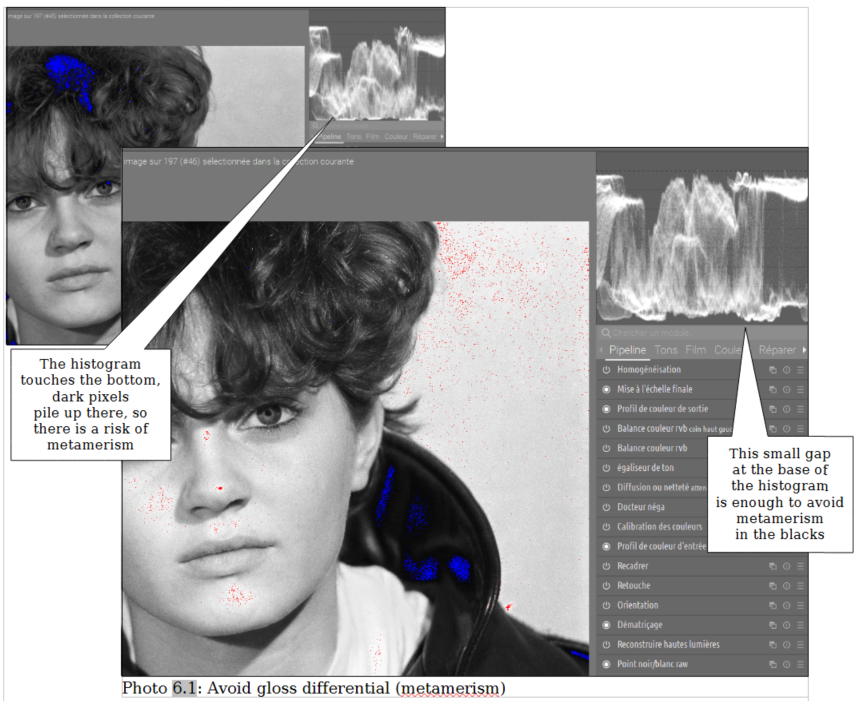
A flaw often attributed to carbon inks is gloss differential. This is a difference in surface sheen, most noticeable in the deepest black areas or in completely blown-out whites. The most common way to remedy it is to spray on a varnish—often in several coats—over the entire image. Or even to run the print back through the printer for an additional pass, adding a layer of Gloss Optimizer (GLOP), which acts like a kind of varnish.
Based on my experience, the simplest approach is to avoid what causes metamerism: the presence of clipped black or white values. Unlike the usual recommendations, you should keep a close eye on the histogram to ensure there’s a small gap—with no pixels at all—at the bottom for the blacks or at the top for the whites. All while still achieving the artistic effect you want in the darkroom, which turns out to be quite easy.
Grain Reduction
As I explained in detail in my article on green LED scanning https://bw-film-scanning.oguse.fr/fr/index.html
, the sharpness obtained with this process offers all
the latitude the printer needs to dose it according to their wishes.
And this is welcome because, indeed, it turns out that, depending on
the subject of the image or the photographer’s preferences,
intervention is necessary. Here’s what I said about it:
"I did not forget my goal of obtaining a 'diffused light' rendering
with just a touch of well-dosed diffusion in post-production, while
altering the precision of textures
I recently had a rare opportunity to compare a
24x30 print from the 1970s, made using a Drust 1000 enlarger with
an opal bulb, with a modern print created from a point-source
green light negative scan and careful post-processing. The result
is an image that is sharper, with finer details, precise local
contrast, and barely visible grain—outshining the slightly muddled
appearance of the original print. as little as possible.
Whether to reduce the prominence of grain or to obtain that
delicious 'creaminess' sometimes offered by medium or large format
photographs."
Souce:
https://bw-film-scanning.oguse.fr/fr/index.html
For example, one would not want the silver grain to be too present in a female portrait or a wedding photo. And conversely, one might appreciate its presence in a street photograph or a misty landscape? In diffused light, this post-production phase is skipped, which makes things easier, but at the cost of a loss of precision in the details, which it is impossible to limit to the strictly necessary while obtaining the desired overall effect on the image. In Darktable/Ansel, two modules give us perfect control over this issue: Diffusion or Sharpening and Contrast Equalizer.
For the Diffusion or Sharpening module, here’s a preset I named ‘Grain Reduction’ that works well for digitizing 24×36 Tri-X negatives in a 46 MP file:
- Iterations: 10 (To adjust the effect, vary this number)
- Central radius: 0 px
- Radius extent: 286 px
- 1st order speed: + 1 %
- 4th order speed: + 10 %
- Edge sensitivity: from 2,00 to 1,20
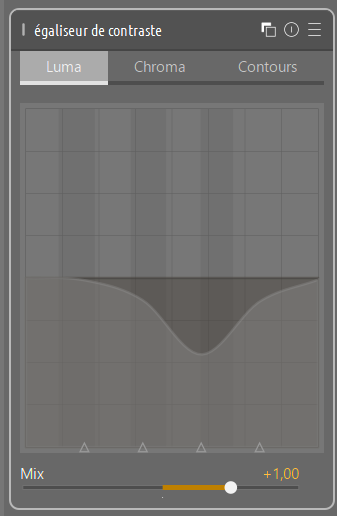 An
example of a Contrast Equalizer setting to reduce grainThe
improvements in Ansel, particularly regarding display responsiveness,
allowed me to discover the spectacular effectiveness and ease of use
of the Contrast Equalizer for this task. The image below shows the
frequency band to target for a 24×36 Tri-X negative in a 46 MP file.
It’s very convenient to deepen the curve or reduce it to immediately
visualize the result. It’s just as easy to test another frequency
band.(Recommended zoom: 50%).
An
example of a Contrast Equalizer setting to reduce grainThe
improvements in Ansel, particularly regarding display responsiveness,
allowed me to discover the spectacular effectiveness and ease of use
of the Contrast Equalizer for this task. The image below shows the
frequency band to target for a 24×36 Tri-X negative in a 46 MP file.
It’s very convenient to deepen the curve or reduce it to immediately
visualize the result. It’s just as easy to test another frequency
band.(Recommended zoom: 50%).
Retouch, spot removal
The Retouch module in Darktable offers amazing features. However, there is a limit. As you increase the number of corrections, called "shapes," the processing gradually slows down to the point of becoming cumbersome. Eventually, it reaches a limit beyond which it becomes impossible to add a new shape. Note that there is even a shape counter, which I haven’t seen documented anywhere. Based on my tests, this limit is around 250 to 300 shapes. For negatives that have accumulated traces over time—scratches, dust, water droplets, fingerprints—it sometimes happens that this limit needs to be exceeded. After all, not all photogravure technicians from the 70s and 80s were particularly careful.
For such images, when only spot removal remains, I prefer to export as a TIFF (see the following paragraph) and finish the work in GIMP. This solution has the advantage of avoiding slowdowns, but you lose the "non-destructive" functionality, which is not yet fully implemented in GIMP.
For retouching in GIMP, be careful:
- Do not adjust global levels: curves, contrast, brightness, etc. This would modify the tonal curve, which would be visible in the print.
- Retouching tools (healing, cloning) can cause small density variations that are visible in the print. To avoid this, keep the "Hardness" at 100% and work with precision, using a high zoom level if necessary.
I know that AI is doing great things in the field of retouching. But for images with heritage value, the loss of control is a dealbreaker.
Exporting to TIFF
I was struck by discovering this other little phrase The
source is no longer available online :-( from
Aurélien :
"Keep all display-related transformations (gamma, output profile,
tone mapping) for the very end of the pipeline. [...] It’s at the
export level that everything is adjusted (in an ideal world; we’re
not there yet in Darktable 3.0 but it’s coming)."
For seven years, this “adjustment” during export remained the biggest challenge I faced with Darktable. There’s no simpler way to explain it than with this image:
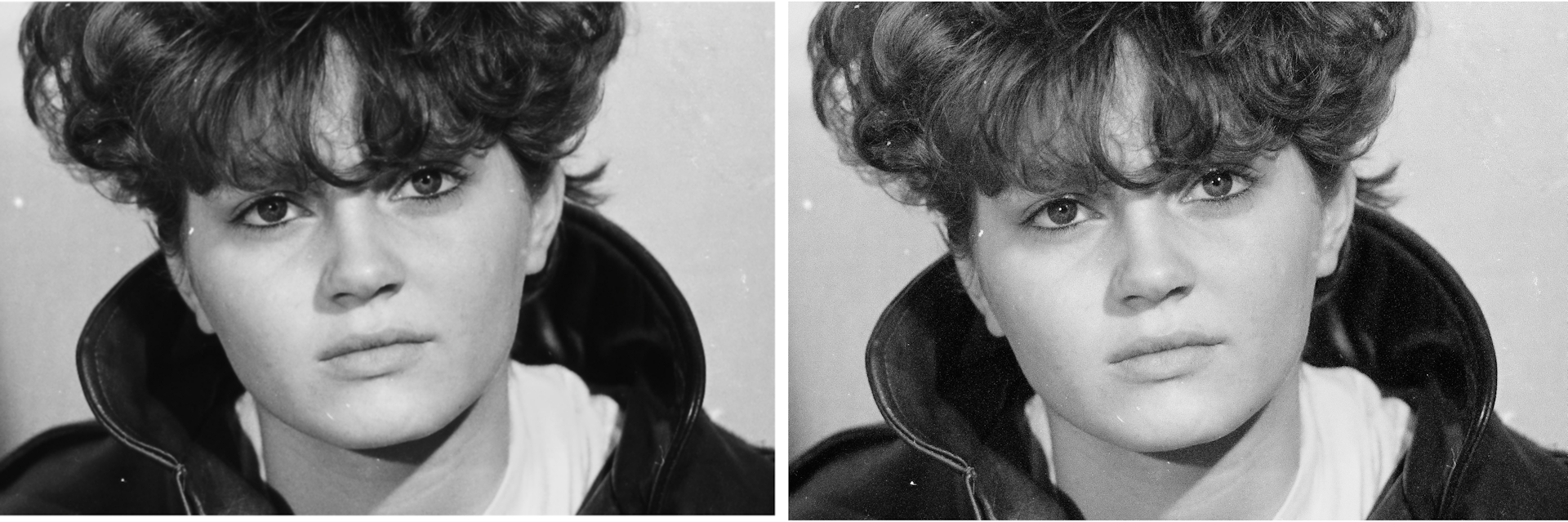
“TIFF exports significantly reduce contrast and remove a good portion of the tonal range.” Despite everyone’s best efforts, nothing had been resolved. I got around it by reimporting the TIFF and then restoring the desired contrast and tonal range. I did this by eye, adjusting the sliders to compensate for the loss caused by the second export. Not very user-friendly, but “it worked.”
Export as TIFF from Ansel without modifying the values
And finally, just as he had announced, Aurélien
provides the solution in Ansel
Technical information from Aurélien:
https://github.com/aurelienpierreeng/ansel/issues/886#issuecomment-4844720030.
The mystery is finally cleared up. As I had occasionally suspected, it
is high-frequency contrast—which is particularly pronounced in my
images, as they render film grain very (perhaps too?) sharply—that
trips up the darkroom display. In fact, with default settings,
Darktable/Ansel does not consistently recalculate the image for
display purposes; however, this recalculation does take place during
export. This configuration has no impact on the vast majority of
photographs, which do not contain this specific type of high-frequency
detail. Aurélien has added an "Image display option" to Ansel to
circumvent this issue, though it comes at the cost of increased
processor load—which can become a significant drawback depending on
the modules used in the pipeline. Here is how I go about using it
while maintaining acceptable performance.
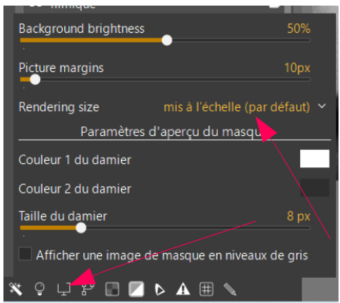
- Using the setup described in section 6.3.1 above, I process my RAW file to achieve the desired look. However, before doing anything else, it is important to check the new setting added to Ansel; this can be accessed in the darkroom by right-clicking the monitor icon at the bottom left. The "Image display options" window (shown here) displays the "Rendering size" set to "scaled (default)." As the name suggests, this is the default setting suitable for the vast majority of images. At this stage, this is the setting you should keep.
- Once I achieve the desired look, I export as usual to 8-bit sRGB TIFF.
- I re-import the TIFF. Since the image is no longer in "green light" mode, I switch back to Ansel's "normal" configuration. As expected, the image immediately lacks contrast and black depth.
- This is the moment to enable "full resolution (slow)" under "Image display options."
- The visual appearance remains unchanged, but the anticipated
slowdown is barely noticeable because the processing pipeline is
virtually empty. This allows me to fine-tune the grayscale values
with the certainty that the final export will match exactly what I
see on screen, all while enjoying an optimal workflow. Here is how I
typically configure "Color Balance" to recover my values:
- Contraste +5,25%
- Brillance / Shadows - 60,62%
- Brillance / Mid-tones +32,53%
- Brillance / Highlights +1,92% - If the image in the darkroom is not strictly black and white but contains some residual colors (e.g., a slightly bluish black or a warm gray), the downstream application (e.g., QTR), if it is supposed to process this file in black and white, will have to apply a conversion, risking results different from what Darktable would have produced.
- If the Calibration module is properly configured for black and white (R = G = B for each pixel), QTR will not resample. But this sRGB profile will remain attached Like Captain Haddock’s bandage. to the file, and some applications may misuse it.
- In Gimp, you will be alerted for nothing, and yet it is right. Consider the following situation: you have applied your usual workflow in Darktable, optimized for black and white, but the original negative is heavily damaged. From experience, you know that retouching will be easier in GIMP. So, you export your work as a TIFF file in grayscale using the sRGB profile. When you open this TIFF in GIMP, you receive the message: "ICC file validation failed: the color profile is not for the grayscale color space." In short, GIMP detects that the specified profile is inconsistent with a grayscale image.
- To maintain a simple and smooth workflow despite the lack of consistency between applications, there is an illogical yet effective way to export from Darktable:
- In the Color Calibration module, select the Luminance-based B&W preset.
- Dans l'export :
- File format: TIFF, 8-bit (8-bit is crucial—16 or 32-bit won’t work here).
- Uncompressed preferred
- Color profile: sRGB (Yes, it’s illogical, but it’s necessary to keep GIMP happy ;-).
- The optical resolution of our old Rodagon enlarging lens, beyond the usual and esoteric measurement in line pairs per millimeter.
- The resolving power of this old emulsion that was TriX, although not the most performant of its time on this level. And by far..
Using Darktable/Ansel TIFF Files in Other Applications
Darktable does a good job of exporting, but it takes a few shortcuts. When exporting to TIFF, Darktable uses the sRGB profile by default. This makes sense for a color image. But for a black and white image, a few questions arise:
Oh, an Eye!

Portion of an 80 x 120 cm print
I will never tire of marveling at the performance of our best
lenses, even old ones, when used under the conditions for which they
were designed. Photographers who have not had to confront the
constraints of silver and its paper prints often struggle to form a
mental image of what these performances are.
This gave me the idea to create the photomontage above to highlight
the fact that the diameter of the iris of this eye measures
only 1.2 mm on the 24 x 36 negative! I hope this gives a
more concrete idea of the possibilities:
Even though it is very difficult, on a screen, and even more so from a PDF, to get an idea of the rendering of a print on paper, here is an example of the values and finesse of detail that I try to achieve.
It's very difficult, on a screen, let alone from a PDF, to get an
idea of how a print will look on paper. However, here's an example
of the values and fine details I'm trying to achieve.
(With grain reduction for a more suitable result for a female
portrait.)
You will then need to examine the print carefully to make any final corrections. In this image, I would be particularly careful to ensure that the white of the T-shirt does not turn gray.
